| OCR Text |
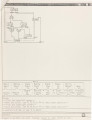
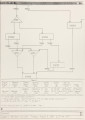
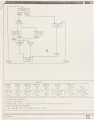
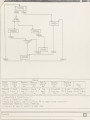
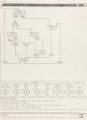
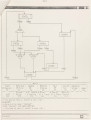
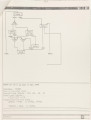
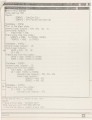
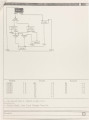
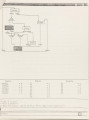
Show 48 time, the active state is initialized to that of the start state of the control-unit and the corresponding outputs are set properly. A reminder message is shown in the output window, which is underneath the interface window, this tells the designer the status of the simulation. Usually this will tell the designer that the simulation process is either in a stable state or in the transition. At both stages during the simulation, the designer is able to change the input conditions. Moreover, the designer is allowed to change the active states while at the stable state, which facilitates the designers control of the simulation process . In Figure 15, an arrow points to the first variable in the input column, which indicates the designer can move up and down the pointer to toggle the inputs. After the designer sets the inputs to the desired state, the simulation process can be started by pushing a control key <CTRL>S. Figure 16 shows the control-unit after the Fork type transition was made from state STATE1 to states STATE2 and STATE3. One can see both states STATE2 and STATE3 are highlighted instead of state STATE1 since the active state has changed. Transition TRAN2 is highlighted with dashed lines that show the transition has been made from the previous active state to the current active state. As mentioned earlier, the designer is able to set the active states as well as setting the input values. Figure 17 depicts the control- unit and the interface window after the designer forces STATE6 as the active state right after the stages shown in Figure 16. Note that the arrow is pointing to the state variable column which indicates that the interface is in the mode in which the designer is |