| OCR Text |
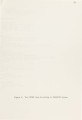
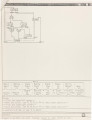
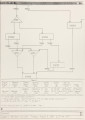
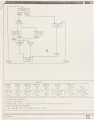
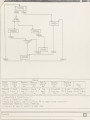
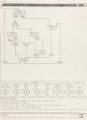
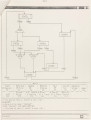
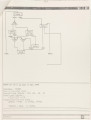
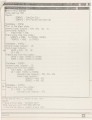
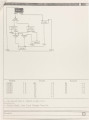
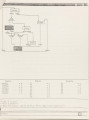
Show 30 underneath the graphics window for selection. We will select the menu item "Start SM Design" to start up a brand new control-unit design. After the menu item is selected, the system sets up the environment and automatically switches to the group of menus which contains, among other features, the menu items for entering global input variables. The designer can switch to any other group of menus by selecting the menu items specified for that purpose. Furthermore, warning messages will appear in the standard output window at times and the whole system works in a highly interactive and user-friendly fashion. 4.1 Start Qy Entering States and Transitions After entering the global input variables, we pick the menu item "*Enter St&Trans" to switch menus. Figure 3 shows the graphical state machine that has been entered so far, where "STATE1" is the start state and is graphically distinct from other states. We have used menu items "Input StartState", "Input State", "Input Move" and "Input Fork" to enter the structures of the states and the transitions which connect them. Note that we are at half way through constructing the "Join" type transition to STATE6 from STATE2 and STATE3. There are some other menu items in the same group, such as "Insert ForkEnd", "Insert JoinStart", "DeleteForkEnd" and "Delete JoinStart" which provide other ways of entering Join or Fork type transitions. 4.2 Scaling and Windowing As the overall size of a state machine might become quite large, the designer is permitted to scale down the graphical display to a smaller size. Similarly, in order to allow a designer to examine a |