| OCR Text |
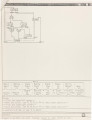
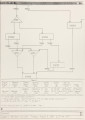
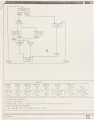
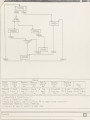
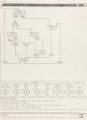
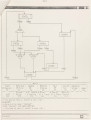
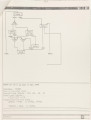
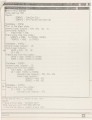
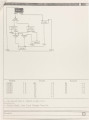
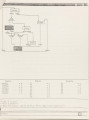
Show 47 these setting have been made, a control key <CTRL>S can be used to start the simulation. The simulator responds to the designer dur i ng the simulation process by highlighting active state(s) or current transient arc(s) graphically as well as displaying the corres ponding outputs on the interface window. The active s tate(s) is/are highlighted by reversing the intensity of the state symbol and the background of its vicinity. The highlighting of the transition arc is done by changing the line style from solid to dash. Moreover, since the simulator is implemented through the use of menu items, the designer can switch back and forth between the simulator and the menu groups to do desired editing. However, three menu items, checkstate, checktransition and checkinput are further bound to the function keys for easy checking of some behavior of the control-unit while the designer is talking through the interface to the simulator. These menu items are especially useful when the designer needs to be reminded of what inputs should be set in order to cause some expected behavior. The designer controls the simulation manually and therefore has complete control of the simulation process. The following shows generally how the interface works and how the simulation is presented. The detailed use of the simulator will be described in the User's Guide to GCS which is contained in Appendix E. We will continue to use the example GCSTEST to briefly show what the interface looks like and how the simulator works. After the menu item "Simulation" is selected, the initial interface with the state names, the changeable inputs and outputs are displayed at the window underneath the graphical display, as shown in Figure 15. At this |